Does AirMouse work with my TV?
Most likely. AirMouse supports TV systems, not only brands: Sony, TCL, Philips and Xiaomi TVs run Google TV, and many TCL and Hisense TVs run Roku. If your TV doesn't connect over Wi-Fi, Bluetooth often does.
Which system does my TV run?
Pick the brand on the front of your TV or stick. Not sure? The system's name is in the TV's settings, usually under About: Google TV, Android TV, Tizen, webOS or Roku.
Pick a brand
You'll see how AirMouse connects to it and what works.
Samsung · Tizen
SupportedSamsung Smart TVs from 2016 and later connect over Wi-Fi. Select Allow on the TV the first time.
Older Samsung TVs: try Bluetooth if the TV accepts a keyboard.
LG · webOS
SupportedLG smart TVs connect over Wi-Fi. Select Allow on the TV the first time.
The touchpad and air mouse move LG's own on-screen pointer.
Sony · Google TV or Android TV
SupportedSony Bravia TVs running Google TV or Android TV connect over Wi-Fi. Enter the code shown on the TV the first time.
Older Bravia TVs without Android aren't supported yet.
TCL · depends on the model
Mostly supportedTCL makes Google TV, Roku and Fire TV models. Google TV and Roku models connect over Wi-Fi. Fire TV models aren't supported yet.
Hisense · depends on the model
Some modelsHisense Roku TVs and Google TV models connect over Wi-Fi. Models running VIDAA aren't supported over Wi-Fi; try Bluetooth if the TV accepts a keyboard.
Philips · depends on the model
Some modelsPhilips TVs running Google TV or Android TV connect over Wi-Fi. Other Philips systems: try Bluetooth if the TV accepts a keyboard.
Xiaomi · Google TV or Android TV
SupportedXiaomi TVs and boxes with Google TV or Android TV connect over Wi-Fi. Enter the code shown on the TV the first time.
Roku
SupportedRoku players, sticks and Roku TVs connect over Wi-Fi with no pairing. Turn on Control by mobile apps first.
Roku receives text one letter at a time.
Chromecast with Google TV · Google TV Streamer · Shield
SupportedConnect over Wi-Fi. Enter the code shown on the TV the first time.
Fire TV
Not yetFire TV sticks and Fire TV Edition TVs (including recent Panasonic and Toshiba models) aren't supported over Wi-Fi yet. AirMouse recognises them and tells you. Bluetooth may work if the device accepts a keyboard.
Apple TV
Not yetApple TV isn't supported over Wi-Fi yet. Bluetooth may work if it accepts a keyboard.
Vizio
Not yetVizio TVs aren't supported yet. AirMouse recognises them on your network and tells you.
Projectors, boxes and computers
BluetoothAnything that accepts a Bluetooth keyboard or mouse works over Bluetooth: your phone pairs with it like a keyboard.
Four systems, most of the smart TVs sold.
For smart TVs on the same network as your phone. AirMouse finds them for you, or you can add a TV by its IP address. The first time, you confirm on the TV.
Google TV · Android TV
Sony, TCL, Philips, Xiaomi, Hisense (some models), Chromecast with Google TV, Google TV Streamer, Shield
- First time
- Enter the code shown on the TV
- Pointer
- Swipes move the highlight
Samsung
Samsung Smart TVs from 2016 and later (Tizen)
- First time
- Select Allow on the TV
- Pointer
- Swipes move the highlight
LG webOS
LG smart TVs
- First time
- Select Allow on the TV
- Pointer
- A real on-screen pointer
Roku
Roku players and Roku TVs from TCL, Hisense and others
- First time
- No pairing. Turn on Control by mobile apps.
- Pointer
- Swipes move the highlight
If it takes a keyboard, it takes AirMouse.
For streaming sticks and TVs without Wi-Fi. Your phone pairs as a Bluetooth keyboard and mouse, so it works with TVs, projectors, streaming sticks and computers that accept one.
- Pair from the TV's Bluetooth or Remotes & accessories menu
- Keys, typing and a real pointer
- No Wi-Fi network needed
- Needs Android 9 or later and a phone that supports it. AirMouse checks for you.
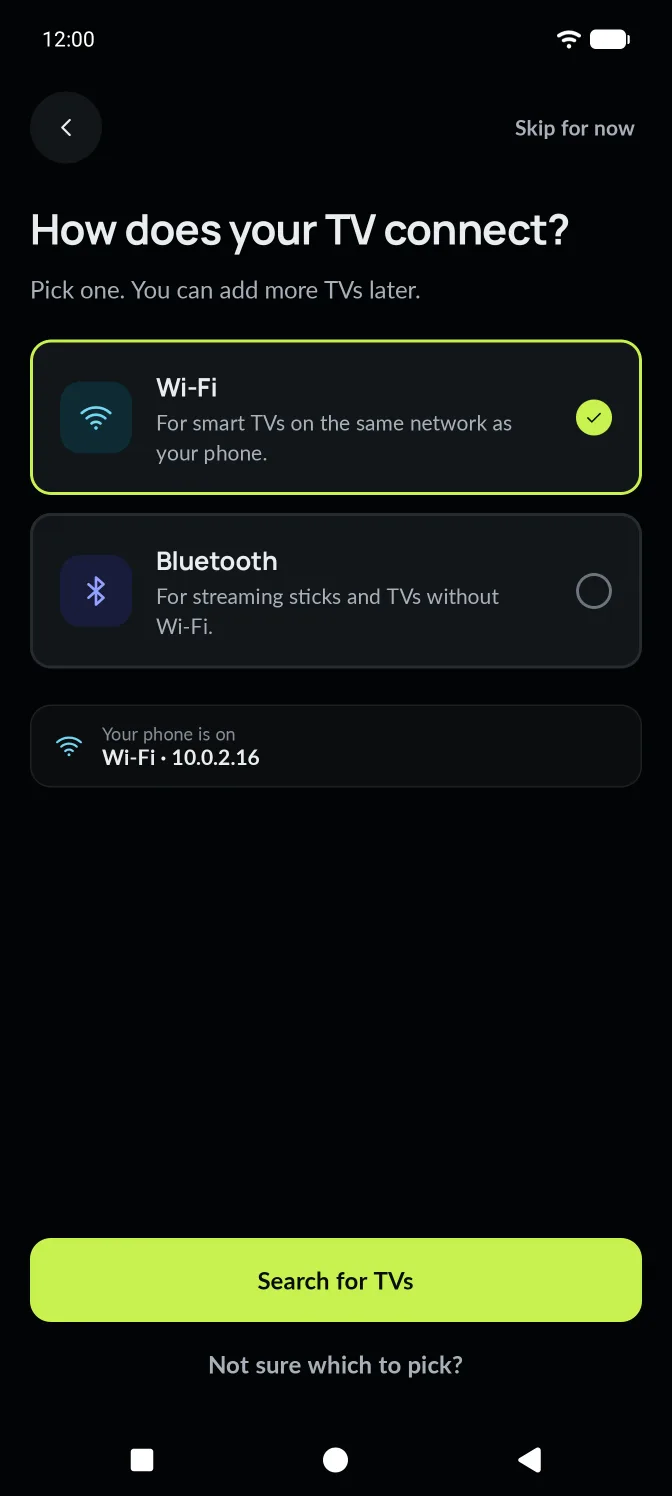
Wi-Fi or Bluetooth?
Smart TVs on your Wi-Fi work better over Wi-Fi. Use Bluetooth when Wi-Fi isn't an option.
| Wi-Fi | Bluetooth | |
|---|---|---|
| Best for | Smart TVs on the same network as your phone | Streaming sticks, projectors and TVs without Wi-Fi |
| Finding the TV | AirMouse searches your Wi-Fi, or you enter the IP address | You pair from the TV's Bluetooth menu |
| First connection | A code or Allow on the TV (none for Roku) | Confirm the same code on both screens |
| TV-specific keys | Yes: Home, Menu, colour keys, numbers and more, depending on the TV | Standard keyboard and media keys |
| Pointer | Real pointer on LG; the highlight elsewhere | Real pointer |
| Needs | Same Wi-Fi, network control allowed on the TV | Bluetooth on, phone within a few metres |
What works where
Each TV tells AirMouse what it supports. Keys a TV can't use stay in place but dimmed, so the remote looks the same on every TV.
| Platform | Connection | Remote keys | Typing and voice | Touchpad and air mouse |
|---|---|---|---|---|
| Google TV · Android TV | Wi-Fi | Yes | Yes | Moves the highlight |
| Samsung (2016+) | Wi-Fi | Yes | Yes | Moves the highlight |
| LG webOS | Wi-Fi | Yes | Yes | Real pointer |
| Roku | Wi-Fi | Yes | Yes, one letter at a time | Moves the highlight |
| Bluetooth keyboard | Bluetooth | Yes | Yes | Real pointer |
Real pointer or moving highlight?
The touchpad and air mouse work on every TV. What they move depends on the TV.
Real pointer
LG webOS and Bluetooth. An arrow moves freely across the screen, and a tap clicks wherever it is. Good for browsers and apps made for a mouse.
Moving highlight
Google TV, Samsung and Roku. Swipes become D-pad steps, so the highlight moves from tile to tile, and a tap selects.
What happens the first time
Each TV asks you to confirm once, so only you can control it. After that, AirMouse reconnects by itself.
Enter the code
Google TV and Android TV. A 6-character code appears on the TV. Letters A–F and numbers 0–9. Expired? Tap Show a new code.
Choose Allow
Samsung and LG. A message appears on the TV. Use your TV remote to choose Allow. No message? Network control may be off on the TV.
Nothing to confirm
Roku. No pairing. If Control by mobile apps is on, AirMouse connects straight away.
Set up your TV
Most TVs work straight away. A few need network control turned on once.
Samsung
Settings › General › External Device Manager › Device Connection Manager. Then select Allow when AirMouse first connects.
LG
Settings › Network › LG Connect Apps › On. Select Allow when AirMouse first connects.
Roku
Settings › System › Advanced system settings › Control by mobile apps › Enabled.
Bluetooth
On the TV, open Bluetooth or Remotes & accessories. Choose your phone, check the code matches, and confirm on both screens.
Your home network
Wi-Fi control happens entirely inside your home network. Your phone talks straight to the TV; nothing goes through the internet.
Before you start
- The TV is on, not in deep standby.
- Your phone and TV are on the same Wi-Fi.
- VPN is off on your phone while you connect.
- Network control is allowed in the TV's settings.
- After a router restart, give the TV a minute.
TV not in the list? Add it by address.
Choose Enter IP address and type the address from the TV's network settings, like 192.168.1.24. AirMouse checks for Google TV, Samsung, LG and Roku at that address.
Checking for Google TV, Samsung, LG and Roku…
Not supported yet
AirMouse recognises these on your network and tells you plainly, rather than failing silently.
Fire TV
Fire TV sticks and Fire TV Edition TVs
Apple TV
All models
Vizio
SmartCast TVs
Older Sony
Bravia TVs without Android
Being worked on
Planned support. No dates yet, and the order may change.
- Fire TVSticks and Fire TV Edition TVs over Wi-Fi.
- Vizio and older SonyPlanned for a later release.
- Apple TVBeing looked into.
Your TV is on the list?
Install AirMouse, pick your TV and confirm on the TV.